Published - Sat, 22 Feb 2025
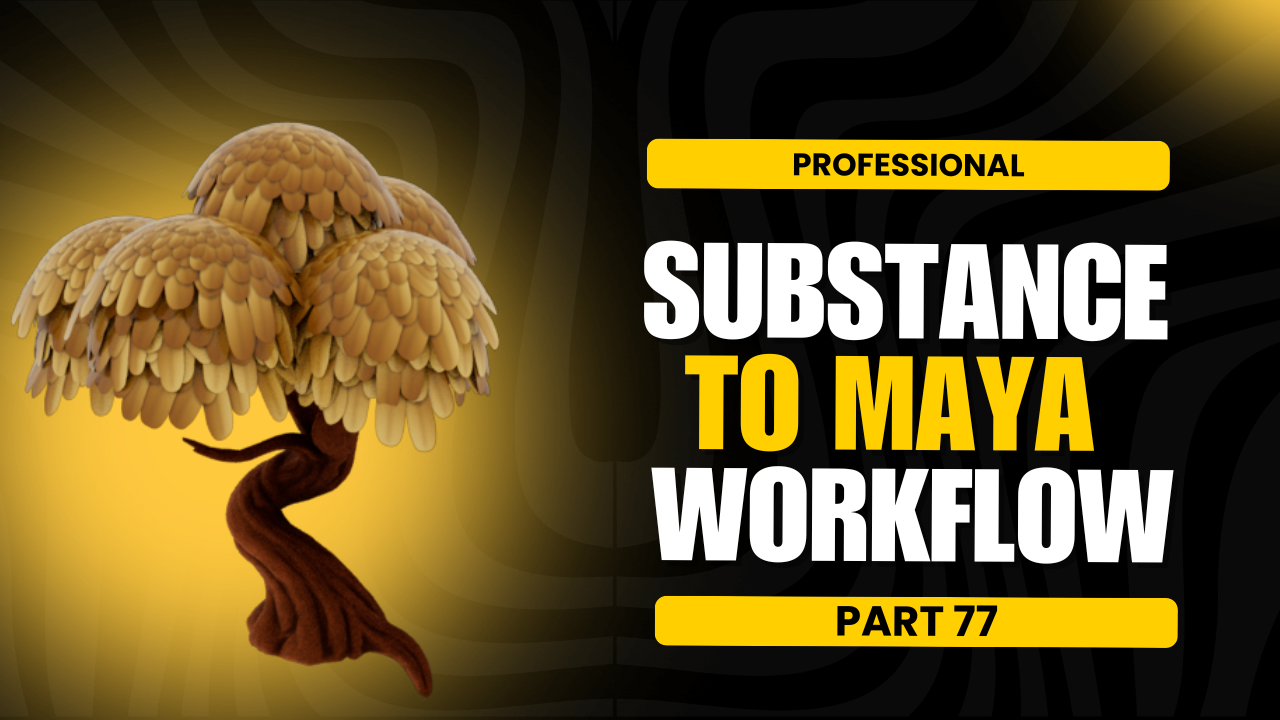
Substance to Maya Workflow
substance to maya workflow
Integrating Substance Painter with Autodesk Maya is a common workflow for creating high-quality textures and materials for 3D models. Below is a step-by-step guide to help you seamlessly transfer textures and materials from Substance Painter to Maya: --- ### **1. Prepare Your Model in Maya** - **Model and UVs**: Ensure your 3D model is properly UV unwrapped in Maya. Clean UVs are essential for texture painting in Substance Painter. - **Export the Model**: Export your model in a format compatible with Substance Painter (e.g., `.fbx`, `.obj`). --- ### **2. Texture Painting in Substance Painter** - **Import the Model**: Open Substance Painter and import your model. - **Create a New Project**: Set the texture resolution (e.g., 2K, 4K) and choose the appropriate template. - **Paint and Texture**: Use Substance Painter's tools to paint textures, create materials, and add details like roughness, metallic, normal maps, etc. - **Bake Maps**: Bake necessary maps (e.g., normal, ambient occlusion, curvature) for accurate texture application. --- ### **3. Export Textures from Substance Painter** - **Configure Export Settings**: - Go to `File > Export Textures`. - Choose a configuration preset (e.g., `Maya (Arnold)` or `Maya (Standard)` depending on your renderer). - Select the maps you want to export (e.g., Base Color, Normal, Roughness, Metallic, etc.). - Choose the file format (e.g., `.png`, `.tif`, `.exr`). - **Export**: Save the textures to a folder accessible to your Maya project. --- ### **4. Import Textures into Maya** - **Apply Textures in Maya**: - Open your Maya scene and select the model. - Assign a new material to the model (e.g., `aiStandardSurface` for Arnold or `Standard Surface` for other renderers). - Connect the exported textures to the appropriate material channels: - **Base Color**: Connect to the `Base Color` or `Color` input. - **Normal Map**: Connect to the `Normal Map` input (ensure you enable `Tangent Space Normals` if needed). - **Roughness**: Connect to the `Roughness` input. - **Metallic**: Connect to the `Metallic` input. - **Ambient Occlusion**: Connect to the `Ambient Occlusion` input (optional, depending on your workflow). --- ### **5. Adjust and Render** - **Tweak Material Settings**: Adjust material properties in Maya to match your desired look. - **Lighting and Rendering**: Set up lighting and render settings in Maya to visualize the final result. --- ### **6. Optional: Live Link Between Substance Painter and Maya** - Use the **Substance Plugin for Maya** to establish a live link between Substance Painter and Maya. This allows you to see texture updates in real-time without manually exporting and importing textures. - Install the Substance Plugin from the Adobe website or Autodesk App Store. - Follow the plugin's instructions to sync your Substance Painter project with Maya. --- ### **Tips for a Smooth Workflow** - **Consistent Naming**: Use consistent naming conventions for textures and materials to avoid confusion. - **Texture Resolution**: Ensure texture resolutions match your project requirements. - **Test Renders**: Perform test renders in Maya to verify the textures look correct under different lighting conditions. By following this workflow, you can efficiently create and apply high-quality textures to your 3D models in Maya using Substance Painter.
Created by
Shavikant Chauhan
Welcome to my website! My name is Anil Chauhan, and I am a 3D modeling and animation expert with over 15 years of experience in the field. I have a passion for creating visually stunning 3D models, animations, and graphics, and I'm excited to share my expertise with you. Whether you're a beginner or an experienced artist, I can help you improve your skills in 3D modeling, texturing, lighting, animation, rigging, CG graphics, and VFX. Let's work together to bring your creative ideas to life!
Welcome to my website! My name is Shavikant Chauhan, and I am a 3D modeling and animation expert with over 15 years of experience in the field. I have always had a passion for creating visually stunning 3D models, animations, and graphics, and my work has been featured in a variety of industries including film, television, advertising, and video games.
Throughout my career, I have had the opportunity to work on a wide range of projects, from small independent films to large-scale productions. This has given me a diverse set of skills and a deep understanding of the 3D animation process from start to finish. I have expertise in complete 3D modeling, texturing, lighting, animation, rigging, CG graphics, and VFX, and I'm always eager to take on new and exciting challenges.
As a tutor, I am dedicated to sharing my knowledge and experience with aspiring artists and professionals alike. I believe that everyone has the potential to create amazing 3D models and animations, and I'm committed to helping my students achieve their goals. Whether you're a beginner looking to get started in the world of 3D animation, or an experienced artist looking to take your skills to the next level, I can provide personalized training and guidance to help you achieve your creative vision.
Comments (0)
Search
Popular categories
Adobe After Effects 2025
30Unreal Engine
15zbrush
10Light
10Maya Animation
8zbrush tutorial jewelry
7Latest blogs
Introduction to Arnold in Maya
Mon, 24 Feb 2025
Substance to Maya Workflow
Sat, 22 Feb 2025
ZBrush User Interface Overview
Fri, 21 Feb 2025
Write a public review